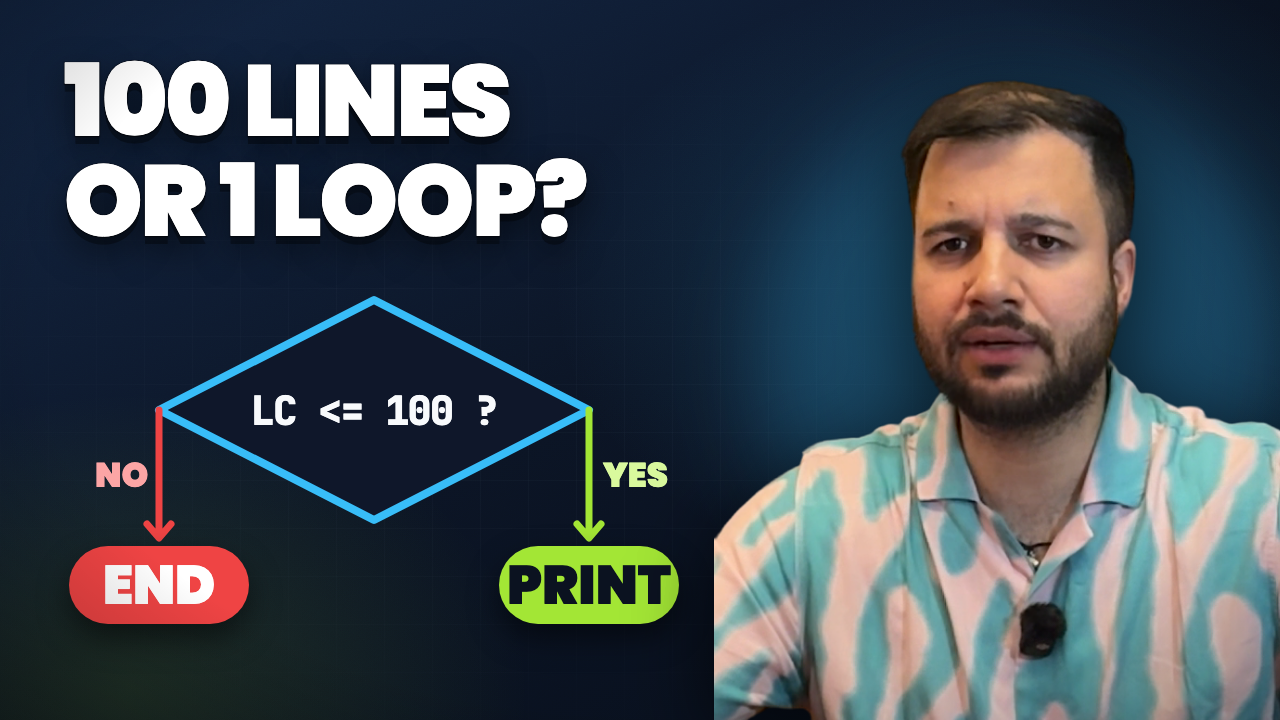
What a loop is, its three parts (initialise, check, update), and a flowchart you can trace by hand from 1 to 101
Every program you will ever write repeats something: reading lines of a file, checking every item in a cart, printing a list. Writing the same instruction a hundred times is not how programmers do it. They use a loop, and the easiest way to see one is a loop in flowchart form, before any code.
In this lesson we learn what a loop is, the three parts every counting loop needs, and a complete flowchart that prints the numbers 1 to 100. Then we trace it by hand, so you can see exactly when it stops.
What is a loop? A daily-routine example
Think of your own day: you wake up, go to the gym, have breakfast, go to the office, work, have lunch, come home, have dinner and sleep. The next day, the same set of tasks runs again. Your routine is a loop.
In programming, a loop is the same idea: a set of instructions that runs again and again, automatically, until a stop condition is met.
Why programs need loops
Suppose you have to print your name 100 times. One way is to write the print instruction 100 times. The other way is to write it once, put it inside a loop, and tell the loop to run 100 times.
The second way is shorter, easier to change (want 1,000 times? change one number) and much harder to get wrong.
The 3 parts of a loop
A counting loop is built from three parts. We call the variable that counts the loop counter (LC):
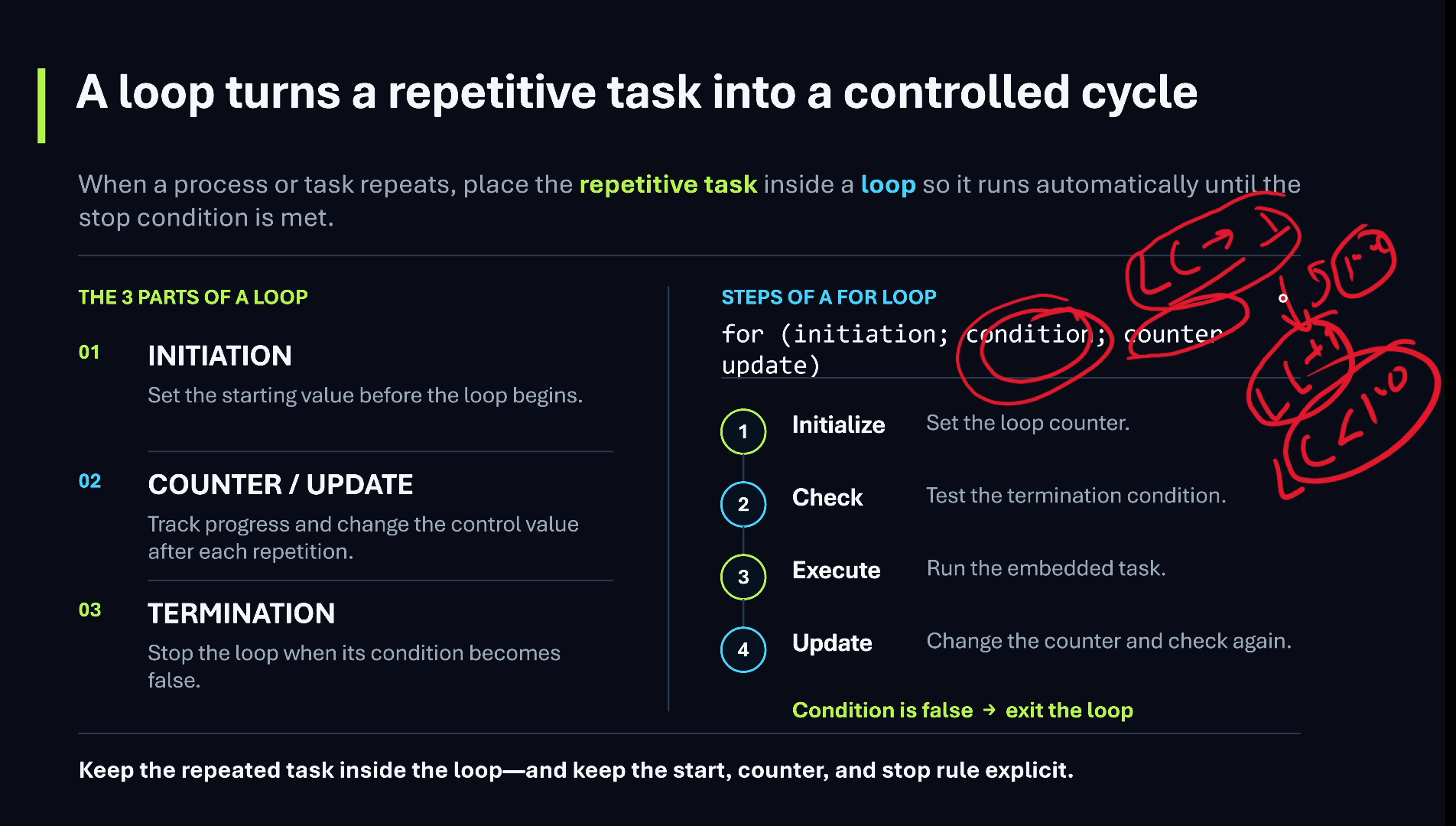
- Initialise: give the counter its starting value, for example LC = 1.
- Check the condition: before every round, check whether the loop should run again, for example LC <= 100. The loop runs while the condition is true and stops as soon as it becomes false.
- Update: after every round (every iteration), change the counter, for example LC = LC + 1.
In C, C++, Java and C#, these three parts sit together in one line: for (initialisation; condition; update).
Exercise: print 1 to 100
Without a loop, the program would be one line per number:
print 1
print 2
print 3
...
print 100
That is 100 lines. Look closely: the instruction print is always the same; only the number changes, 1, 2, 3 and so on. A changing number that goes up by one each time is exactly what a loop counter is for.
Loop in flowchart: print 1 to 100, step by step
- Start (terminal).
- LC = 1 (process box): initialise the loop counter.
- LC <= 100? (decision diamond): the condition.
- Yes: print LC (output box), then LC = LC + 1 (process box), and an arrow goes back up to the decision.
- No: End.
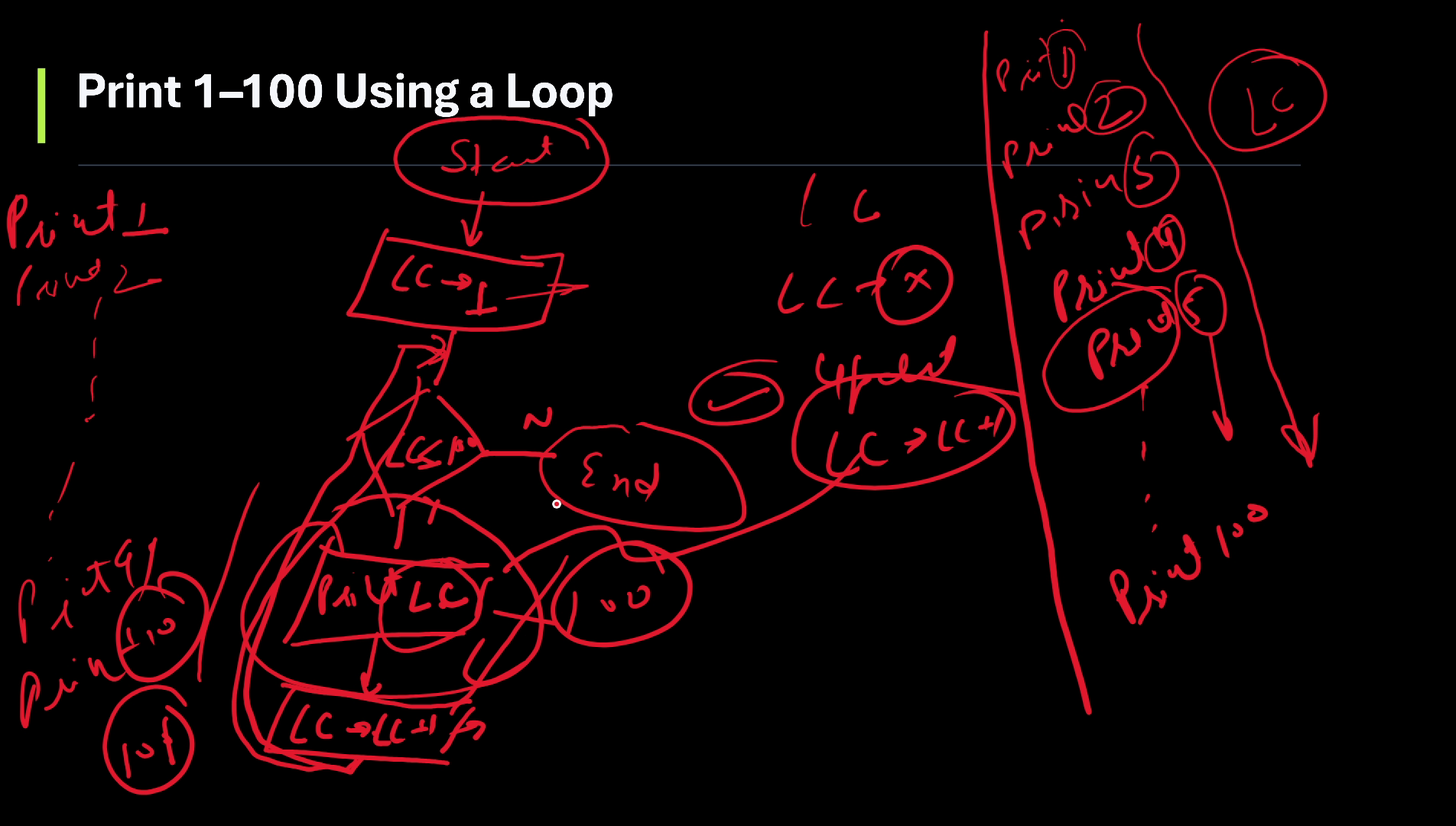
The arrow that goes back to the decision is what makes it a loop in a flowchart. Everything between the decision and that arrow is the loop’s body.
Trace it by hand: 1, 2, 3 … 101
| LC | LC <= 100? | Output | LC after update | |—|—|—|—| | 1 | Yes | 1 | 2 | | 2 | Yes | 2 | 3 | | 3 | Yes | 3 | 4 | | … | … | … | … | | 99 | Yes | 99 | 100 | | 100 | Yes | 100 | 101 | | 101 | No | (End) | |
The print box runs exactly 100 times. The check runs 101 times: the 101st check is the one that ends the loop.
A common mistake: < 100 instead of <= 100
If the counter starts at 1 and the condition is LC < 100, the loop stops after printing 99, one short. To print 1 to 100, either use LC <= 100 or LC < 101. Whenever you write a loop, check the first value, the last value and the condition together.
Video chapters
- 0:00 Why loops matter
- 0:27 A loop in real life: a daily routine
- 1:09 Repeating a task in programming
- 1:40 Example: print your name 100 times
- 2:24 The 3 parts of a loop
- 3:11 Exercise: print 1 to 100
- 4:16 Drawing the loop flowchart
- 5:17 Testing it: 1, 2, 3 … 101
- 6:36 Summary: counter, condition, update
Watch the short versions
Short on time? These Shorts from this lesson each make one point in under a minute.
- Print Your Name 100 Times? Use a Loop (24 s Short, coming soon, from 1:40 in the full video)
- Print 1 to 100: 100 Lines or One Loop? (51 s Short, coming soon, from 3:11 in the full video)
- Loop Flowchart: Print 1 to 100 Step by Step (48 s Short, coming soon, from 4:16 in the full video)
Key takeaways
- A loop repeats a set of instructions until a stop condition is met.
- A counting loop has three parts: initialise, check the condition, update.
- The loop runs while the condition is true and ends when it becomes false.
- In a flowchart, the arrow back to the decision makes the loop.
- To print 1 to 100 starting at 1, the condition is LC <= 100 (or LC < 101).
Frequently asked questions
What is a loop in a flowchart?
A decision box with an arrow that goes back to an earlier step. While the decision’s condition is true, the steps between them run again; when it becomes false, the flow continues past the loop.
What are the three parts of a loop?
Initialisation (the counter’s starting value), the condition (checked before each round) and the update (how the counter changes after each round).
How do I print 1 to 100 using a loop?
Set LC = 1; while LC <= 100, print LC and add 1 to LC. In C-style languages: for (LC = 1; LC <= 100; LC = LC + 1) print LC.
Why does my loop print only up to 99?
Your condition is probably LC < 100 with LC starting at 1. Use LC <= 100 (or LC < 101).
Further reading
- Iteration statements: the for statement (Microsoft Learn, C#): initializer, condition and iterator sections
- for loop (cppreference): init-statement, condition, expression
- Flowchart (Wikipedia): standard symbols: terminal, input/output, process, decision
Practice: change the flowchart so it prints only the even numbers from 2 to 10. Where does the counter start, and how much does it change each time?
If you want to learn programming from zero, watch the video, subscribe to the channel and follow the series.